Aaima Disable WordPress Updates
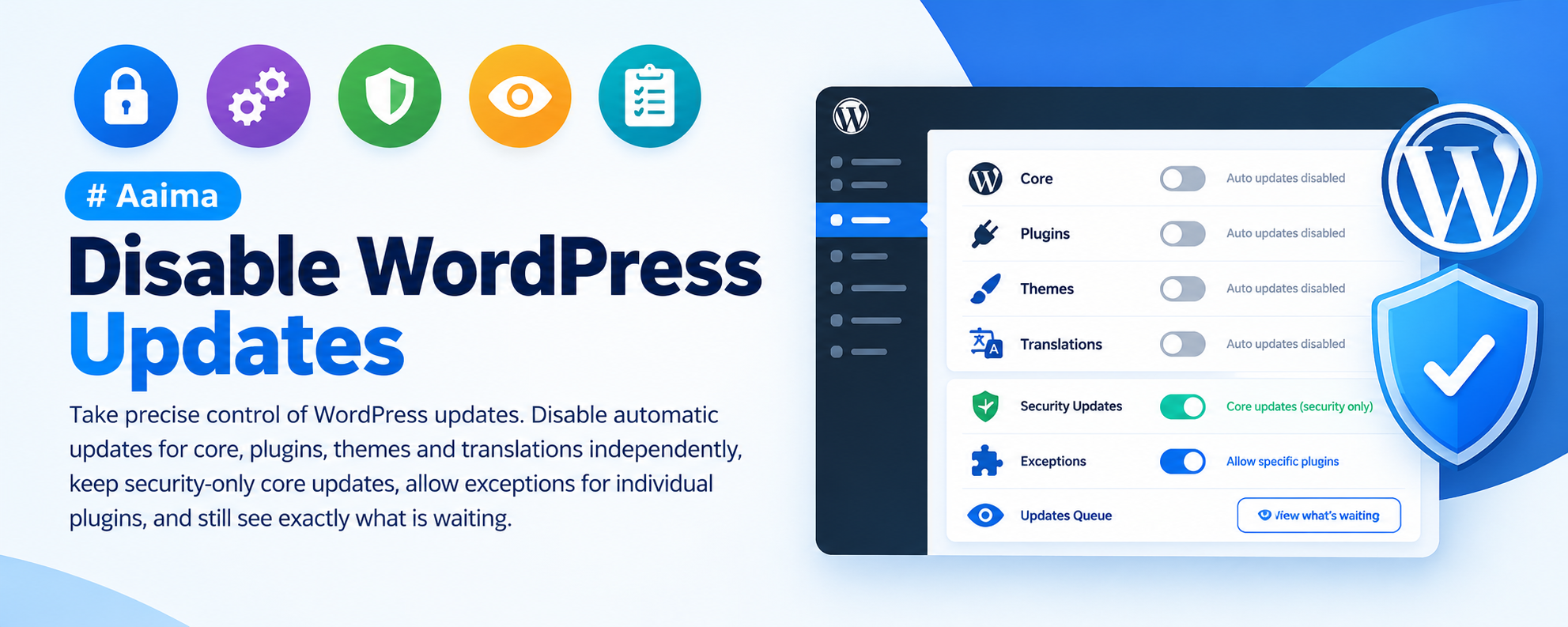
Take precise control of WordPress updates. Disable automatic updates for core, plugins, themes and translations independently, keep security-only core updates, allow exceptions for individual plugins, and still see exactly what is waiting.
📑 Table of Contents
🚀 Getting Started
- • System Requirements
- • Installation
- • The Default Setup
- • Choosing a Configuration
🔒 Update Control
- • Core: Three Modes
- • Plugins & Themes
- • Per-Plugin Exceptions
- • Translations
👀 Staying Informed
- • The Status Screen
- • Checking on Demand
- • Site Health Reporting
🖥️ Interface
- • Hiding the Nag
- • Menu Bubbles
- • The Updates Screen
- • Emails
⚡ Advanced
- • Blocking the API
- • Cron Events
- • wp-config Constants
🔧 Support
- • Troubleshooting
- • FAQ
- • Changelog
System Requirements
What the plugin needs to run
WordPress
5.8+PHP
7.4+WooCommerce
Not neededMemory
64MB+This plugin works on any WordPress site, with or without WooCommerce.
Key Features
A dial, not a switch
Granular Control
Core, plugins, themes and translations are controlled independently, rather than one all-or-nothing toggle.
Security-Only Core Mode
Allows updates within the same version branch — 6.5.2 to 6.5.3 — and blocks the jump to 6.6. Closes known vulnerabilities without the risk of a major upgrade.
Per-Plugin Exceptions
Block automatic plugin updates in general, but let your security plugin keep updating itself.
You Are Never in the Dark
The Status screen runs a real check against WordPress.org, deliberately ignoring your own blocking rules, and lists exactly what is waiting.
Urgency at a Glance
Core releases are tagged as security or major, so you can tell immediately whether something needs attention today.
Interface Tidying
Optionally hide the nag banner, the toolbar counter, the red menu bubbles, or the Updates screen itself.
Honest Site Health
Adds a Site Health entry describing your configuration, and flags it if you have switched off core security updates.
Faster Admin
Blocking the update API removes the outbound calls that slow the dashboard on sites with many plugins.
Respects wp-config
Detects constants like AUTOMATIC_UPDATER_DISABLED and warns that they override the plugin, rather than quietly disagreeing.
Installation Guide
Two ways to install
📦 Method 1: WordPress Admin
- 1
Go to Plugins → Add New
- 2
Click Upload Plugin
- 3
Choose aaima-disable-updates.zip
- 4
Click Install Now
- 5
Click Activate
📁 Method 2: FTP Upload
- 1
Extract aaima-disable-updates.zip
- 2
Connect to your server via FTP/SFTP
- 3
Navigate to /wp-content/plugins/
- 4
Upload the aaima-disable-updates folder
- 5
Activate in Plugins
After Activation: The defaults are already sensible — security releases on, everything else manual. Review them under Settings → Update Control.
Hard-refresh after uploading an update. Browsers cache plugin CSS and JavaScript. Press Ctrl+Shift+R (or Cmd+Shift+R) so you are not looking at the old version.
Choosing a Configuration
Three setups that cover most sites
Client Site
Security only, hide Updates screen
Customised Site
Security only, security plugin excepted
Staging Copy
Block everything, block the API
Simple Site
Leave WordPress defaults on
🔒 Core Update Modes
The most important choice you will make here
✅ Allow Everything
- WordPress behaves as it ships
- Major upgrades install themselves
- Fine for simple sites
🛡️ Security Only — recommended
- Maintenance releases within the same branch
- 6.5.2 → 6.5.3 yes, 6.5 → 6.6 no
- Closes vulnerabilities, rarely breaks anything
- This is what WordPress itself does by default
🚫 Block Everything
- Nothing installs itself at all
- You take full responsibility for patching
- Appropriate for staging copies
👀 Checking Stays On
- Blocking installation and staying informed are different things
- Leave checks on and the Status screen still tells you what is due
- Costs nothing and installs nothing
The instinct after a bad update is to switch everything off. But that also switches off the security patches, which is how sites get hacked. The default here takes the middle path: nothing installs itself except WordPress security releases, and you are told about everything else.
Settings Reference
Every option explained
🔒 Automatic Updates
This controls what installs itself without you. It never stops you updating by hand.
| WordPress core | Allow all, security and maintenance only (recommended), or block everything. |
|---|---|
| Plugins | Allow or block automatic plugin updates. |
| Plugin exceptions | Individual plugins that keep updating automatically despite the rule — security plugins are the usual candidates. |
| Themes | Allow or block, with per-theme exceptions. |
| Translations | Separate toggle for language file updates. |
👀 Checking for Updates
Leaving these on is strongly recommended. Checking costs nothing, installs nothing, and is the only way to know when a security release exists.
| Keep checking core | Whether WordPress asks about new core versions. |
|---|---|
| Keep checking plugins | Unticking hides new plugin versions entirely. |
| Keep checking themes | Unticking hides new theme versions entirely. |
Switching a check off does speed up the admin slightly on sites with many plugins — but it means a security release could pass you by.
🖥️ What You See
| Hide the nag banner | The "WordPress x.y is available" message. Hidden by default. |
|---|---|
| Hide the toolbar counter | The update count in the admin bar. |
| Hide the menu bubbles | The red counts on Dashboard, Plugins and Themes. |
| Hide the Updates screen | Stops anyone installing updates from the admin, including you. Useful on client sites. |
| Update emails | Silence result emails and automatic update debug emails. |
⚡ Advanced
Only reach for these if you know you need them. Both can leave a site silently out of date.
| Block the update API | Refuses all update requests to wordpress.org. The biggest speed gain and the biggest blind spot. The Status tab can still check on demand. |
|---|---|
| Unschedule cron events | Removes the twice-daily update checks from WP-Cron. Restored automatically on deactivation. |
Recommended Setups
Pick the row that matches your situation
⚙️ Three Configurations
| Site type | Core | Plugins & themes | Checks | Interface |
|---|---|---|---|---|
| Client site you maintain | Security only | Blocked | All on | Hide nag and Updates screen |
| Heavily customised site | Security only | Blocked, security plugin excepted | All on | Hide nag only |
| Staging or development copy | Block everything | Blocked | All off | Block API, unschedule cron |
Troubleshooting Guide
Common issues and how to fix them
ℹ️ New products or plugins are not updating
Nothing installs itself
⚠️ wp-config.php is also controlling updates
A warning banner appears
ℹ️ The Status tab shows updates I blocked
Seems contradictory
ℹ️ The red bubbles are still there
Counts still showing
ℹ️ My premium plugin still updates itself
Ignores the rules
ℹ️ Site Health shows a warning
Recommended action flagged
Frequently Asked Questions
Common questions answered
Q: Can I still update manually?
Yes. Everything here concerns automatic updates. The Updates screen works normally unless you deliberately hide it.
Q: How do I know when a security release comes out?
Leave the checks on and look at the Status tab, or press "Check for updates now". Core releases are tagged as security or major so you can judge urgency at a glance.
Q: Why does the Status tab still show blocked updates?
Deliberately. The check bypasses your own rules so the report is always accurate — blocking installation should not mean flying blind.
Q: What happens when I deactivate the plugin?
WordPress returns to normal immediately. Cron events are rescheduled and cached update data is cleared, so a fresh check happens right away.
Q: Does it need WooCommerce?
No. This plugin works on any WordPress site.
Q: Will blocking the API break anything?
Searching for and installing new plugins still works — only the update endpoints are refused. The Status tab bypasses the block when you use it.
Q: Is it safe to block core updates entirely?
It is your decision, but it is the option most likely to lead to a compromised site. Security releases stay within the same version branch and rarely cause problems.
Q: Is it translated?
Yes — complete French and German translations are both included.
Changelog
Version history
v1.0.0 — Initial Release
- Independent control of core, plugin, theme and translation updates
- Security-only core mode using version-branch comparison
- Per-plugin and per-theme automatic update exceptions
- Status screen running a real check that bypasses blocking rules
- Core releases tagged as security or major
- Optional hiding of nag banner, toolbar counter, menu bubbles and Updates screen
- Update and debug email suppression
- Optional blocking of the wordpress.org update API
- Optional unscheduling of update cron events, restored on deactivation
- Site Health integration reporting the real configuration
- wp-config.php constant detection with a clear warning
- Complete French and German translations
Support & Updates
We're here to help
6 Months Support
Via ThemeForest comments or support email. We reply within 24-48 hours on business days.
Free Lifetime Updates
All future updates are free, and included in the Aaima theme update package.
Built-in Help
Every screen of this plugin has a Help tab covering setup and troubleshooting, so the answer is always to hand.
Need Help?
Get support via ThemeForest comments or contact us directly
📧 Contact Support 📖 View Full DocsAaima Disable WordPress Updates v1.0.0 | Part of the Aaima Theme package
WordPress 5.8+ | PHP 7.4+ | WooCommerce not required
© 2026 Nasir Mehmood — All Rights Reserved